Manual
Hamon
A polyphonic LFO driven by a fluid simulation, not a clock.
- Version
- 1.2
- Updated
- 2026-10-27
- Format
- Max for Live · Audio Effect (modulator)
- Get it
- cotofu.com/devices
What it is
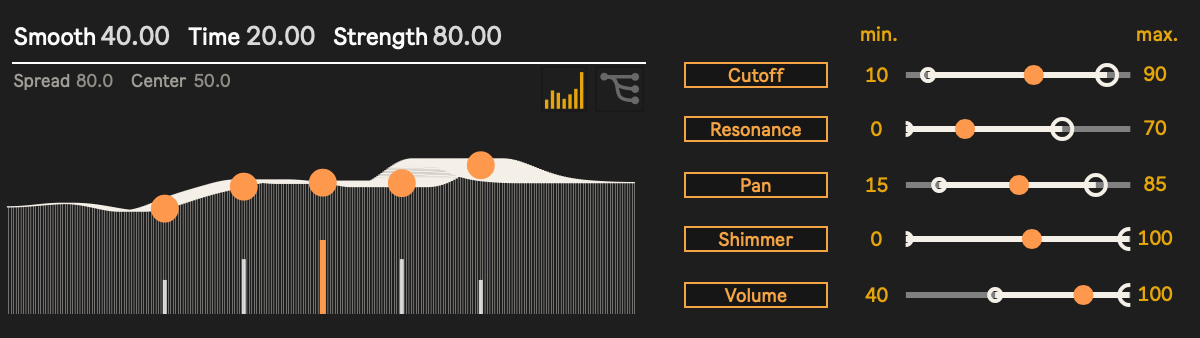
Hamon (波紋, “ripples”) is a polyphonic LFO for Ableton Live, built in Max for Live. Instead of repeating a fixed waveform, it simulates a water surface. Stones fall into the water on their own, and five buoys float on the ripples. The height of each buoy becomes one of five LFOs, so the movement is smooth, related across the five outputs, and never locked to the beat.
Requirements
- Ableton Live 12 with Max for Live (included in Live Suite). Tested on Live 12.4. Earlier versions of Live have not been tested.
- macOS (Apple Silicon and Intel) or Windows (64-bit)
- Nothing else to install. The device is frozen: the one external it uses (
cv.jit.blur) is built in for both macOS and Windows.
Install
The zip contains a Hamon 1.2 folder with:
Hamon.amxd: the device. The version is shown at the bottom right of the device and in Live’s Info View.README.txtLICENSE-cv.jit.txt,COPYING.LESSER.txt,COPYING.txt: license texts for cv.jit (see Credits and license)
To use it, drag Hamon.amxd from Finder or Explorer onto a track in Live. Hamon is an audio effect, so it can go on any audio track, or after the instrument on a MIDI track. It passes audio through unchanged. It only sends modulation.
To keep it in Live’s browser, put the file in your User Library, for example in Presets/Audio Effects/Max Audio Effect, or drag it into the User Library section of the browser.
Quick start
- Drop Hamon on a track. The water starts moving right away. Playback does not need to be running.
- Click the right of the two icons at the top right to open the mapping panel. It has five rows, one per LFO.
- Click Map in row 1. The button starts blinking. Then click the parameter you want to move in Live, for example the Frequency of an Auto Filter. The button now shows the parameter’s name, and the parameter turns grey because Hamon is controlling it.
- Set the range with min and max. These are percentages of the target parameter’s full range. Start with something like 20 and 70.
- Play some sound through the target. Repeat with rows 2 to 5 for more parameters.
To disconnect a row, click its X button. X appears once the row is mapped.
Controls
Water
| Control | Range | What it does |
|---|---|---|
| Strength | 0–100 | How hard and how often stones fall. A new stone falls when the tallest wave drops below a threshold. Higher Strength raises that threshold and makes the stones taller, so the water stays busier and the LFOs swing wider. At 0 no new ripples start, and the water slowly settles to flat. |
| Time | 0–100 | Length of one simulation step, from 1 ms to 100 ms. Larger values make the waves travel more slowly, so the LFOs move more slowly too. The LFO outputs are interpolated between steps, so they stay smooth at any setting. |
| Smooth | 0–100 | Blurs the water surface before the buoys read it. Higher values give rounder, gentler LFO curves. Lower values keep small, quick ripples. It changes only what the buoys read, not the simulation itself. |
Buoys
| Control | Range | What it does |
|---|---|---|
| Center | 0–100 | Position of the main buoy (orange line, LFO 1) across the water, from left to right. |
| Spread | 0–100 | How far the other four buoys sit from the main buoy. At 0 all five buoys read the same point, so the five LFOs are identical. Larger values spread them out, so they move more independently. |
You can also drag on the water display: drag left and right to move Center, and up and down to change Spread.
The five LFOs come from these buoys:
| LFO | Buoy |
|---|---|
| 1 | Main buoy at Center (orange) |
| 2 | Farthest to the left |
| 3 | Halfway to the left |
| 4 | Halfway to the right |
| 5 | Farthest to the right |
Mapping panel (one row per LFO)
| Control | Range | What it does |
|---|---|---|
| Map | Click it, then click a parameter in Live to connect this LFO to it. Only one Map button can wait for a click at a time. Hamon cannot map to its own parameters. | |
| X | Disconnects the row. Shown only while the row is mapped. | |
| min / max | 0–100 % | The part of the target parameter’s range that the LFO sweeps. An LFO at the bottom of its range sends min, and at the top it sends max. Most of the time the water moves around the middle, so the output moves mostly in the middle of the min–max range. Widen the range or raise Strength for larger swings. You can also drag the two handles on the bar, or drag up and down on the bar to widen or narrow the range around its middle. The orange dot shows the current output. |
Display
The two icons at the top right:
- Left icon: switches the display between the water surface (buoys on the waves) and a scope that draws the five LFO outputs over the last few seconds.
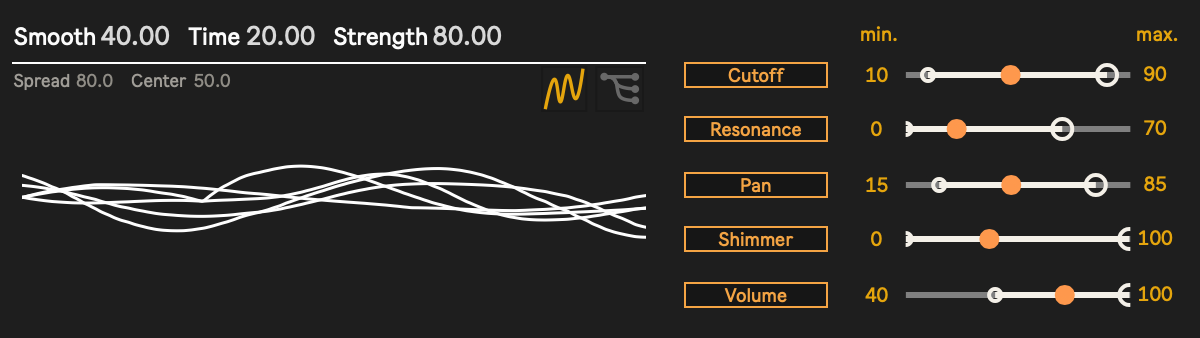
- Right icon: shows or hides the mapping panel. Hiding it only makes the device narrower. The LFOs and mappings keep running.
How it works
- The water. Hamon simulates a single line of water, 256 points long, with a simple wave equation. A ripple spreads left and right from where it starts, reflects at the edges, and fades out slowly. A little extra damping is added while the waves are very tall, so the surface never runs away.
- The stones. Nobody throws the stones. Hamon drops one at a random spot, with a random height, whenever the water gets too calm (see Strength). At most one stone falls every half second. The result never repeats, but it always stays in motion.
- The buoys. Five buoys read the height of the water where they float, once every step. Because they sit on the same water, neighbouring buoys move in related but different ways: a ripple passes one buoy, then the next. This is what makes Hamon “polyphonic”. The five outputs are five views of one moving surface, not five unrelated random LFOs.
Tips
- Movement free from the beat. Hamon ignores Live’s tempo and transport. Use it where tempo-synced LFOs sound mechanical: a filter on a pad, the position in a wavetable, reverb size, the pan of a texture. Against a steady drum part, the free movement stands out clearly.
- Related motion. Map several LFOs to related parameters, such as the cutoff and resonance of the same filter, or the pan and volume of the same sound. With a small Spread they move almost together. With a large Spread they drift apart.
- Slow evolution. For very slow changes, raise Time and Smooth and lower Strength.
- Several Hamons. Each Hamon runs its own water and its own stones, so several instances in a set do not affect each other (fixed in 1.2, see Version history). Use one per sound that needs its own movement.
- Automation. While a parameter is mapped, Hamon controls it and Live ignores that parameter’s own automation (it shows grey). Automate Hamon’s controls instead: Strength, Time, Smooth, Center, Spread, and each row’s min and max. In Live’s automation chooser, the min and max of the rows appear under older internal names such as
MIn,Max[1]and so on. These were kept so that sets made with 1.1 still work. - Device on/off. Turning Hamon off stops the water. Mapped parameters stay at their last value until you turn it back on.
Troubleshooting / FAQ
The Map button does nothing when I click a parameter.
Click Map first, then click the parameter in Live’s device or mixer, not in Hamon. Hamon’s own controls cannot be mapped. A parameter that is already controlled by another modulator may not accept a second one.
A mapping disappeared.
If the target device or track is deleted, the row goes back to Map. Mappings are saved with the Live set, and they follow when you duplicate a track.
Nothing moves.
Check that Hamon is switched on and Strength is above 0. With Strength at 0 the water slowly goes flat and the LFOs stop. Also check that min and max are not set to the same value.
My settings changed after reopening a set.
This was a bug in 1.1: Strength, Center, Spread, Smooth and Time reset to their defaults every time a set was opened or a track was duplicated. It is fixed in 1.2. Replace the device with 1.2 and set the values once more.
Moving from 1.1 to 1.2.
1.1 was distributed as Hamon_1.1.amxd. From 1.2 on, the file is always called Hamon.amxd, so future updates can simply replace the file. In a set made with 1.1, add Hamon 1.2 as a new device and set the values and mappings again. A newly added device starts fresh, so it does not take over the mappings or automation of the old one.
Does it use a lot of CPU?
The audio processing is very light. The simulation and the drawing run on Live’s interface thread, which Live’s CPU meter does not show. 1.2 limits the drawing to about 30 frames per second, which is much lighter than 1.1.
Version history
- 1.2 (2026-10-27)
- Strength, Center, Spread, Smooth and Time are now kept when a set is reopened or a track or device is duplicated. Before, they reset to their defaults.
- Several Hamons no longer share the Time setting.
- Dragging Spread on the display no longer jumps.
- Lighter on the interface: drawing is limited to about 30 frames per second.
- The simulation stops while the device is switched off.
- LFO 1 no longer reads outside the water when Center is 100.
- Smaller fixes.
- Parameter names are unchanged, so 1.1 sets remain compatible.
- 1.1 (2025-04-28): Max 9 build, frozen for macOS and Windows.
- 1.0: first release, Max 8.
Credits and license
Hamon by Itsuki Doi (Cotofu).
Hamon includes cv.jit.blur from cv.jit by Jean-Marc Pelletier, licensed under the GNU Lesser General Public License v3.0 (LGPL-3.0). Source code: https://github.com/jmpelletier/cv.jit. The cv.jit license and the full LGPL-3.0 and GPL-3.0 texts are in the zip and at https://cotofu.com/licenses/.